How to Do the Zombie Trend with Two Photos
Make your zombie trend video with two photos: choose roles, quality and format, add credits, submit your request, and receive it by email.
Have your two photos ready? Create your zombie story ↗
Already have your photos? Start in the homepage generator and use the steps below as your checklist. You choose the story, photos, quality, and format; our team prepares the video after successful submission.
Make the zombie trend without writing prompts
You do not need a prompt, a filming session or an editing timeline to use ZombieTrend. Start with the two character photos and select the story in our homepage generator. The prepared template explains the four moments, while our examples let you watch the idea before submitting.
If you want to understand the instructions behind this type of video, read the zombie trend prompt guide. You do not need to copy its text to use our creator. For a dog or cat story, visit the pet creation page, then choose Pet & me in the generator.
Make your story without writing a prompt.
Before you start
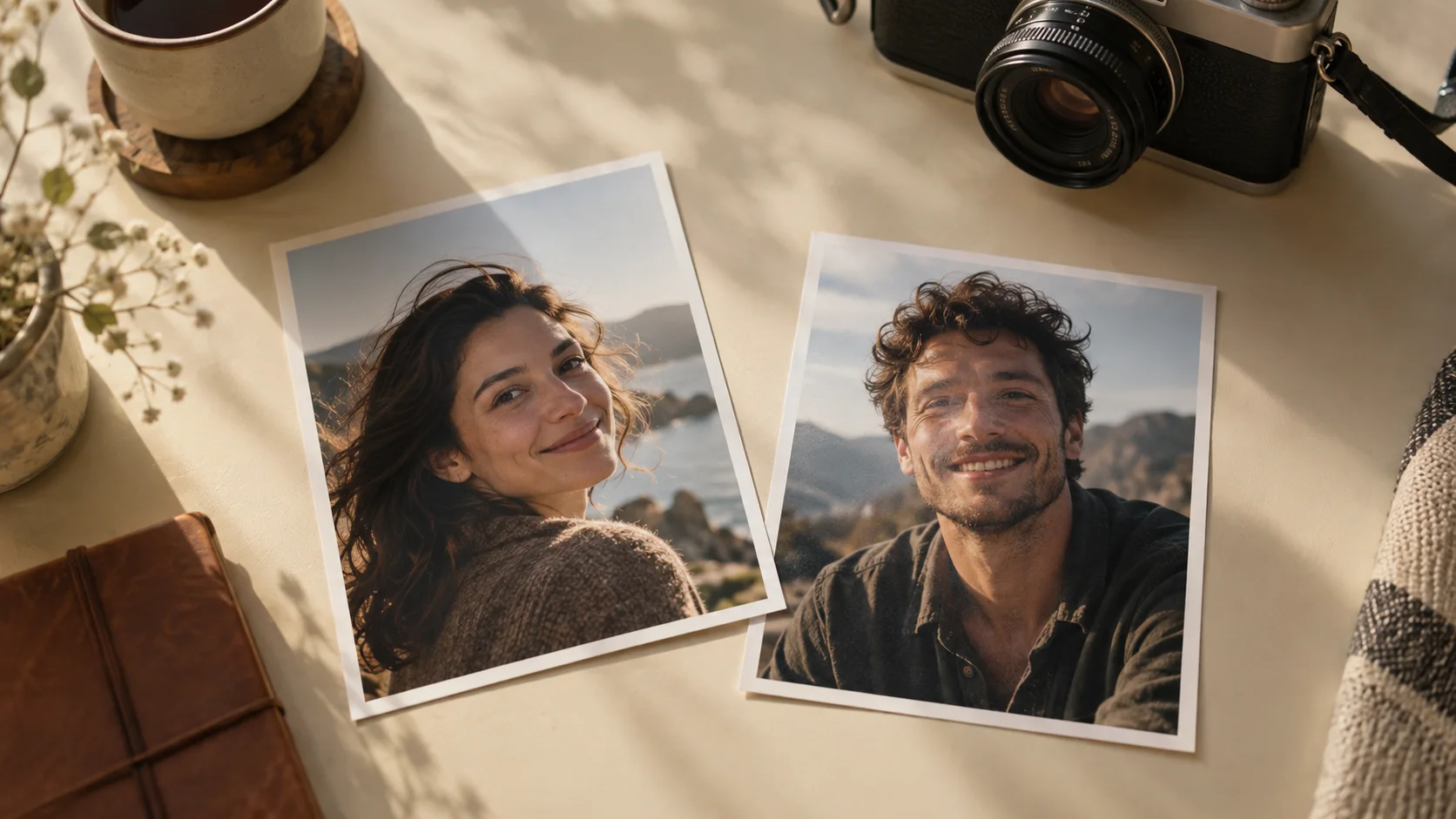
Prepare two separate photos and use images you have permission to upload. Photo one is the adult who stays human. Photo two is the adult partner, friend, dog, or cat who takes the zombie role. This order also carries through into the memory scene.
Each image must be JPG, PNG, or WebP and no larger than 8 MB. A sharp, well-lit portrait with the face visible is a better starting point than a small crop from a group photo. Our photo guide covers examples of what to choose and what to avoid.
Step 1: Open the creator and choose your story
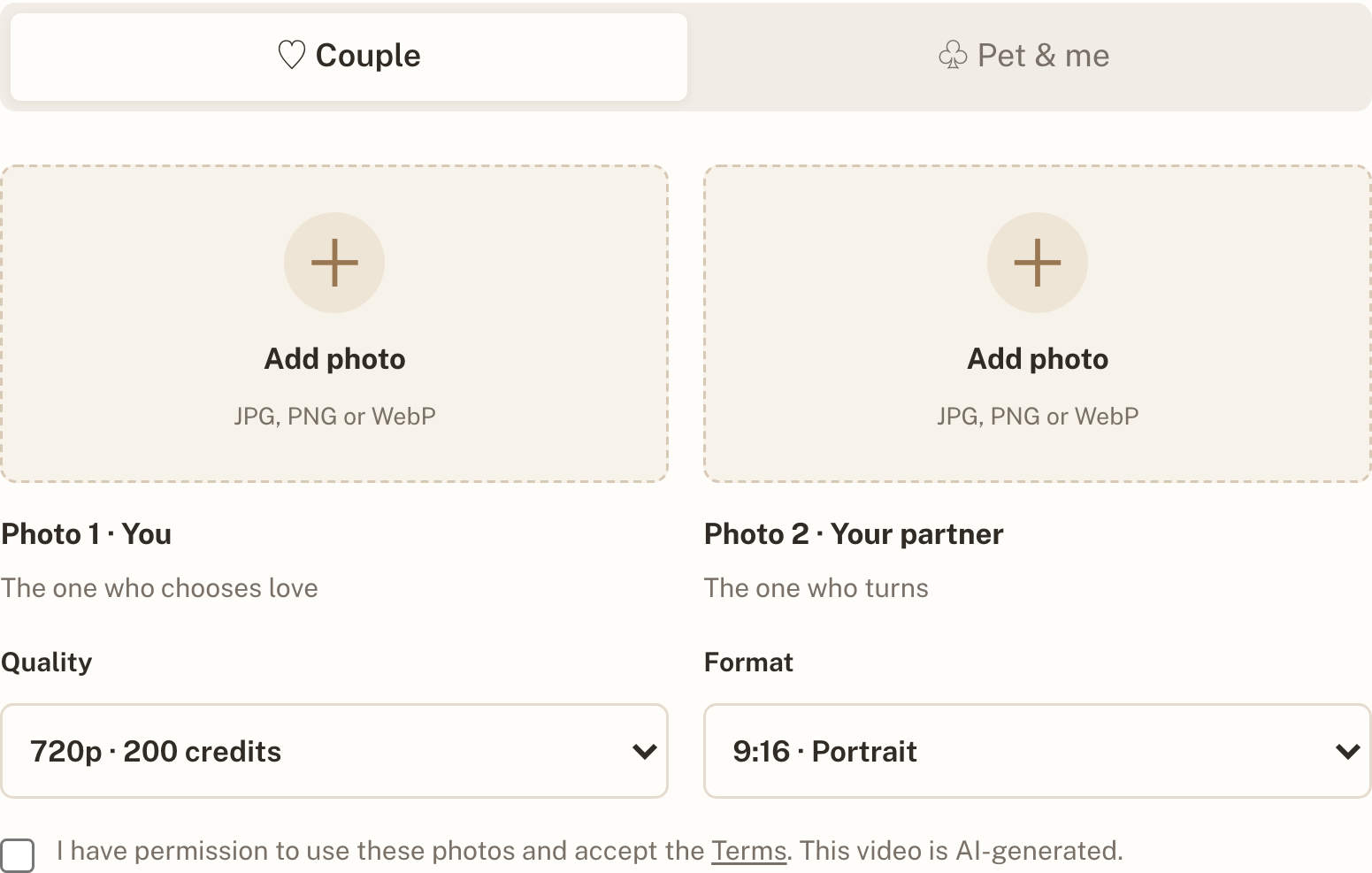
Open the ZombieTrend creator on the homepage. Choose Human & zombie for two adults, or Pet & me for yourself and your dog or cat.
You are choosing a prepared story: a confrontation, recognition, an embrace, and a warm memory. The creator does not have a custom prompt box or a location selector. If you have seen a snowy version elsewhere, that does not mean snow is an option here.
Step 2: Add your photos in role order
Put yourself, or the adult who will remain human, in the first slot. Put the partner, friend, or pet who becomes the zombie in the second. Check both previews before moving on. If the roles are reversed, replace the images in the appropriate slots.
Use one subject per image. Avoid sunglasses, heavy face filters, and objects that cover the eyes or mouth. For a pet, choose a picture with a clear face and recognizable markings. You do not need matching clothes or identical backgrounds.
Step 3: Choose quality and format
Select 480p standard quality for 200 credits, or 720p HD for 300 credits. Both options create a 15-second video with sound. Choose portrait 9:16 for a vertical composition, or landscape 16:9 for a wider frame.
Portrait is a practical choice when you plan to share in a vertical feed. Landscape leaves more room around the characters. These options change the output format, not the number of story scenes or the delivery method.

Step 4: Sign in and add credits if needed
Review both photo previews, your options, and the photo permission checkbox before continuing. Sign in when prompted. Your selected photos and options can be restored across sign-in on the same browser. An already-started submission can continue after sign-in when your account has enough credits.
Credit packs are one-time purchases: 300 credits for $9.90, 900 for $24.90, or 2,400 for $59.90. Purchased credits are valid for 365 days. There is no subscription or registration gift. See pricing for the public catalog.
A credit purchase is not a video request. If you started a request before adding credits, the creator can resume that saved submission once your balance is sufficient. Return to check its confirmation. If you only bought a credit pack, choose your photos and submit a request separately. You can use the remaining credits for another request later.
Step 5: Submit and check the confirmation
Before submitting, check the verified account email shown for delivery. The team sends your video to that address. The selected quality determines the credits used when the request is successfully submitted.
Keep the request confirmation and check My requests for the recorded request. If a connection problem leaves you unsure whether submission succeeded, check your requests before starting a different request.
The 12-hour delivery window begins at successful submission, rather than when you upload a photo or buy a credit pack.
Step 6: Receive and review your video
Our team creates the clip and delivers it by email within 12 hours. Online instant generation is not the current workflow. Check the final video for faces, movement, and the transition before sharing it.
AI output can vary. A better source photo can help the team work with your likeness, but it does not guarantee an exact facial match or perfect motion. If you need help with a request, contact us with its ID.
Common questions
Can I paste a prompt into ZombieTrend?
No. This creator uses the prepared couple or pet story. You upload photos and choose the listed options; the team handles preparation and delivery.
I bought credits. Why have I not received a video?
Buying credits adds to your balance. Check My requests or the creator's confirmation to see whether a saved submission continued successfully. If you only purchased a pack without starting a request, return to the creator and submit one. A recorded request, rather than a payment receipt, starts the delivery window.
Can I use one photo of both people?
The current creator needs two separate role photos. Choose a clear individual image of each adult instead of uploading the same group photo twice.
Ready for your own story?
Open the generator and add your two photos. If you have already submitted, check My requests or your confirmation before starting another request. Your video arrives by email within 12 hours of successful submission.