How to Choose Photos for Your Zombie Trend Video
Choose clear role photos for a zombie trend video: lighting, face visibility, pet markings, upload order, file limits, and permission.
Have your two photos ready? Create your zombie story ↗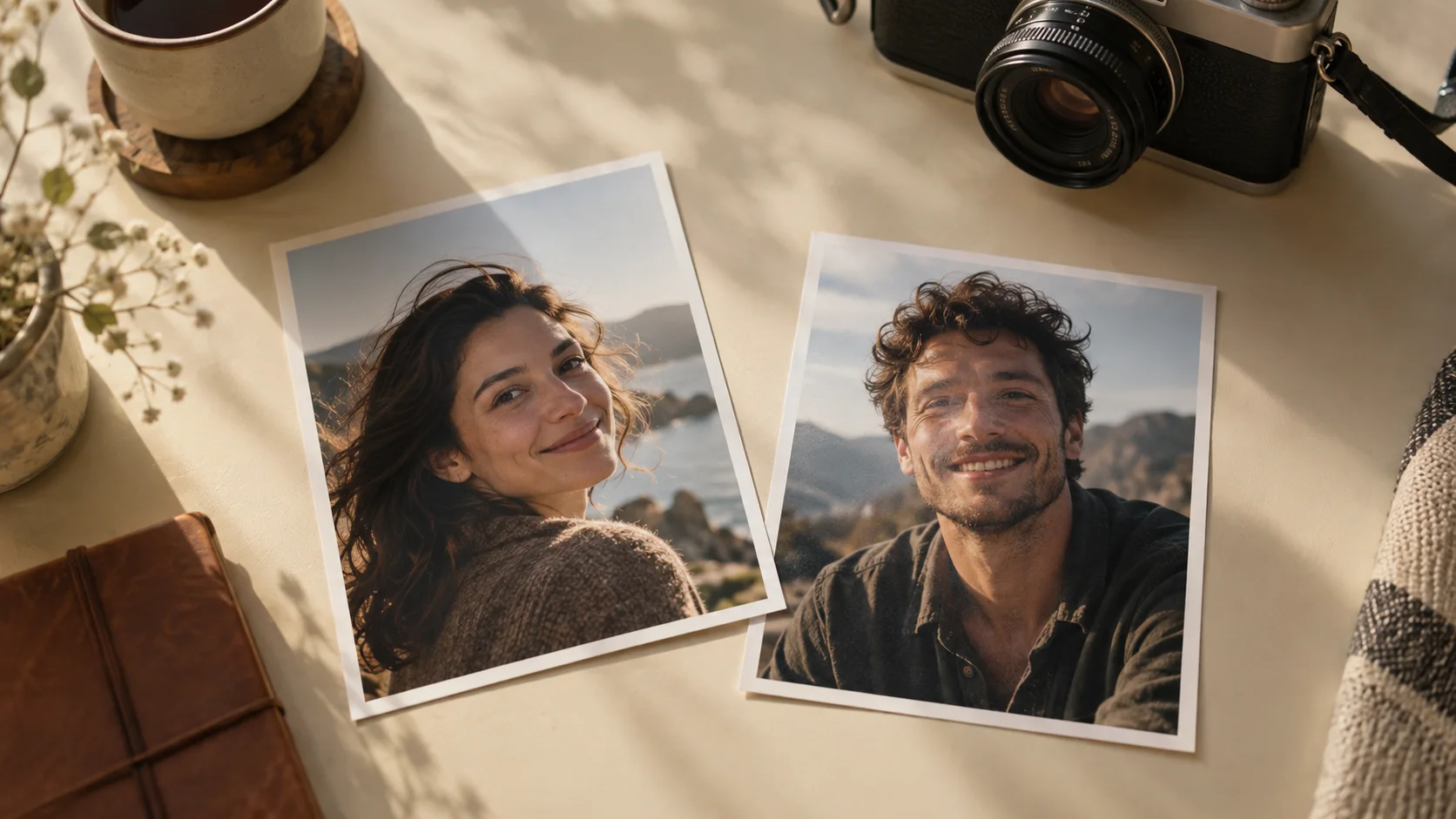
Have two clear photos already? Add them in the homepage generator and check the role previews. Use this guide if you are choosing between pictures or need to check the file requirements.
Choose between two photos: a practical comparison
| If you are deciding between… | Start with… | Why it helps |
|---|---|---|
| A tiny face in a scenic photo and a clear portrait | The clear portrait | Eyes, mouth and facial outline are easier to read |
| A dark party photo and evenly lit daylight | The evenly lit photo | Fewer important details disappear into shadows |
| A heavily filtered selfie and an ordinary phone photo | The ordinary photo | It represents the identity you want to recognize |
| A moving pet and a sharp picture of its face | The sharp pet photo | Muzzle, ears and markings remain visible |
| A group photo and separate individual photos | Individual photos | Each role has one intended subject |
Check the two previews in the creator rather than relying on filenames. Photo one stays human; photo two turns. If a file is rejected, check its actual format and size before trying again. Renaming HEIC to JPG does not convert it, and a video is not a supported photo.
Compare the photos with the story you want
You are choosing character references, not uploading every scene. The prepared template shows what the two roles become. The example library can help you decide between a human story and a pet reunion. For your dog or cat, the pet page explains the role order.
Your photos are ready? Open our generator. Review both previews before signing in or submitting; replacing a picture is easier while you are still preparing the request.
Give each role its own photo
ZombieTrend needs two separate images. The first is the adult who remains human. The second is the adult partner, friend, dog, or cat who becomes the zombie. The same identities continue into the happy memory.
Choose the roles before choosing the pictures. If you are making the pet version, put yourself first and your pet second. If you are making a couple's version, agree on who takes each role. Upload order matters more than whether the photos were taken together.
A group shot is harder to interpret because it contains extra faces. Select individual portraits rather than uploading the same shared photo into both slots. You can use images taken on different days; matching backgrounds are not required.
Look for a clear, recognizable face
Start with a sharp picture in which the eyes, nose, and mouth are easy to see. A front-facing or gently turned face is a useful choice. Avoid a faraway subject, a tiny face in a large scene, or a crop that removes important features.
A normal phone portrait can be enough. Enlarging a blurry image does not restore the facial detail that was missing. Heavy beauty filters, cartoon effects, and screenshots of compressed photos can also make the reference less reliable.
The aim is to give the team a readable reference, not to find a perfectly posed studio photograph. An ordinary picture that looks like you is more useful than a heavily altered one.
Choose even light and fewer obstructions
Soft daylight or an evenly lit room makes facial features easier to read. Avoid strong backlighting that leaves the face dark, or harsh shadows crossing the eyes and mouth.
Remove sunglasses and choose a picture without a hand, mask, or phone covering the face. Hair can remain natural, but a photo with the eyes hidden by a fringe is a weaker reference. Ordinary clothing and a simple background keep attention on the person.
If you are comparing two otherwise suitable pictures, choose the sharper one with more visible facial detail. Do not rely on makeup, a dramatic pose, or a complex background to carry the story; the video supplies its own scene.
For a pet, preserve the features you recognize
Pick a dog or cat photo with the face visible and distinctive markings easy to see. Ears, muzzle shape, and fur patterns help distinguish your pet. Avoid a sleeping pose with the face hidden, a fast-action blur, or a photo dominated by a large toy.
Use one pet in the image. A whole group of dogs or cats leaves the intended subject unclear. Make sure the uploaded file is an actual photo in a supported format, rather than a video file or an animation.
Our pet story guide explains the role order and the difference between the zombie appearance and the healthy memory.
Check file format and size
The creator accepts JPG, PNG, and WebP, up to 8 MB per photo. HEIC files are not on the supported list. Export a copy as JPG or PNG if your phone has saved the image in another format; changing the filename extension alone does not convert it.
If a file is too large, resize or export a compressed copy while keeping the face readable. Do not compress it so heavily that the eyes and mouth become blocks of color. Check the previews after selecting both files.
You can replace a photo before submission. Reviewing the previews is also the right moment to catch reversed roles or an accidental group image.
Permission and privacy
Upload adult photos you own or have permission to use, and pet photos you are entitled to upload. Get the other person's agreement before making a personalized story with their likeness.
Your uploaded photos are not added to the public examples. They are encrypted in storage and can be accessed by you and authorized staff to prepare the requested video. External AI services may be involved in preparation; the Privacy Policy explains the service's handling of photos.
A final check before you submit
- Two separate files, with one intended subject in each.
- Human role first; zombie partner or pet second.
- Faces visible, in focus, and reasonably well lit.
- JPG, PNG, or WebP, no larger than 8 MB each.
- Permission confirmed, and both previews checked.
Clear references are preparation, not a guarantee of exact output. AI can alter facial details, motion, and timing. When you are ready, follow the two-photo creation tutorial.
Your photos are ready. Start the story.
Upload your two photos in the homepage generator. Check that the human is first and the zombie partner or pet is second, then choose quality and format. The team emails your video within 12 hours of successful submission.