
One zombie trend template. Your two faces.
A familiar face in a changed world. A choice to hold on. One embrace that becomes a memory. See what the prepared story asks of your photos.
Make this story mine ↗Start in our homepage generator. Choose Human & zombie or Pet & me, then add a photo for each role.
Watch the story before you start
Public AI-created trend examples. Their scenes, lengths and formats vary; they are inspiration, not a menu of selectable scripts. Your ZombieTrend request is a 15-second story with sound.
Love remembers
Love remembers: an AI-created zombie trend human and zombie story, moving from an apocalypse confrontation to an embrace and a happy memory.
Make my story ↗The four scenes behind the zombie trend template
You supply the two identities. The prepared story supplies the emotional sequence. These stills follow our public human example; AI details, movement and timing can vary in your finished clip.
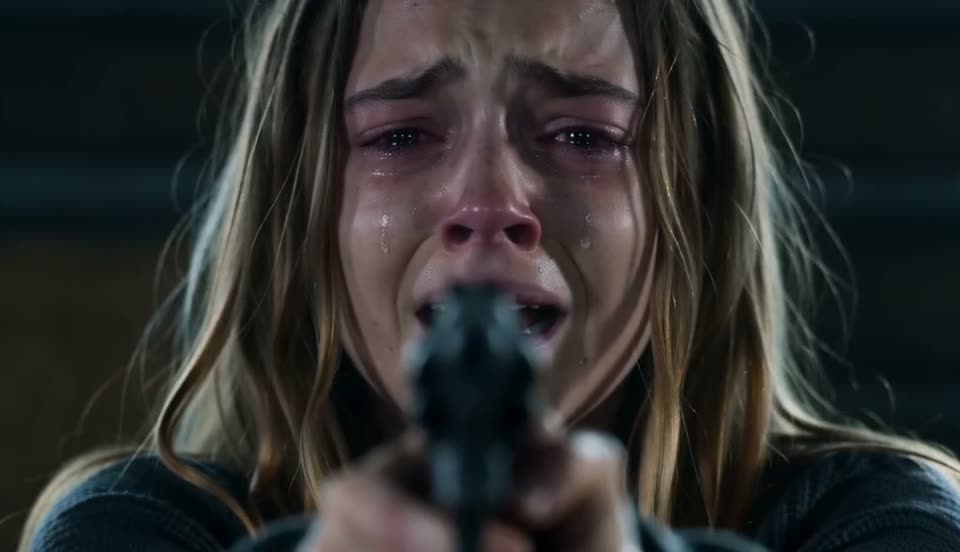
1. The impossible choice
A familiar person has turned. The human partner faces them in a ruined room, unable to let go.
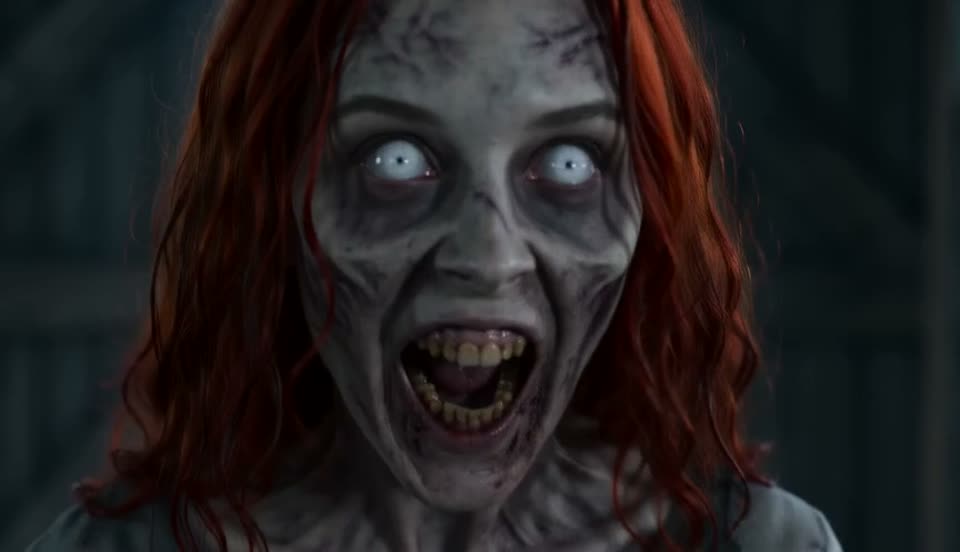
2. Still them, underneath
The zombie appearance changes the mood, but recognition is what makes the scene personal.
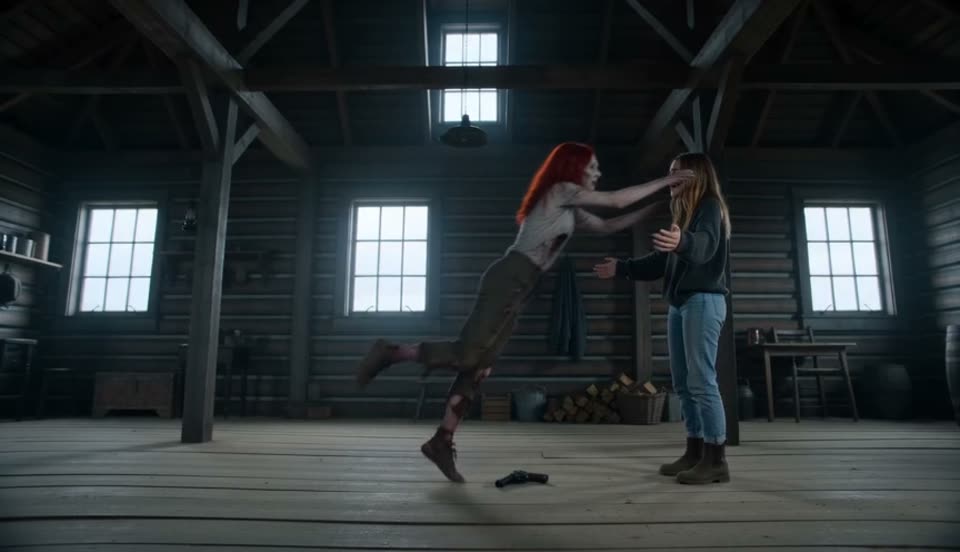
3. An embrace
The weapon lowers and the distance closes. The frightening movement becomes a reunion.
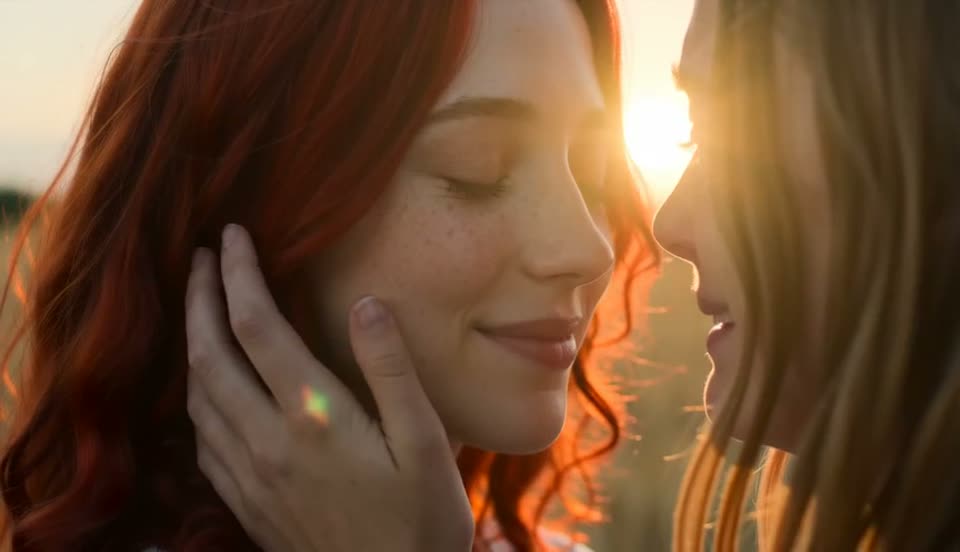
4. A happier memory
The embrace carries the story into a warm field, where the same pair appears together again.
A video story, not a zombie face filter
A face filter changes a single portrait. This story depends on two roles and the contrast between the tense opening and the warm ending. You do not need zombie makeup photos, a reference performance or a pre-edited video. Start with individual photos that show who each character is.
Make the template personal
Two adult partners or friends can take the human roles. For an owner and a dog or cat, choose Pet & me on the homepage. The people or pet you cast make the story yours; a dedication can be added when you share the finished video. The creator does not offer a custom script or memory-location selector.
Make your story in the ZombieTrend generator
Choose your two roles
Open the homepage generator. Photo 1 stays human; photo 2 is the adult or pet who becomes the zombie. Check that each file shows only the intended subject.
Review your video options
Choose standard or HD quality and portrait or landscape. The generator displays the credit cost for your selection. Check the current credit packs before purchasing.
Sign in and submit
Confirm permission to use the photos and follow the generator to submit. Buying credits alone is not a video request. Check your confirmation and My requests afterward.
Before you start
Do I need to write a zombie trend prompt?
No. The homepage generator uses a prepared human or pet story. Choose your photos, quality and format. Our prompt guide explains the storytelling for those who want to understand the process.
Can I use a single photo of both subjects?
The current ZombieTrend creator requires two separate role photos. Choose one clear adult photo for the human and one individual adult or pet photo for the zombie role.
Will my video exactly match an example?
No. The prepared story follows the same emotional arc, but facial details, motion and timing can vary. Gallery clips also have different lengths and backgrounds. Review the available options in the generator.
Where do I start and check delivery?
Use the homepage generator to see the current creation and delivery details before submitting. A recorded request starts the process. Keep its confirmation and visit My requests if you need to check it.